
Steps for All Users
- Download DBeaver from the following website: https://dbeaver.io/download/
- If you have a School mssm.edu email address, you are eligible to obtain the full featured “Enterprise Edition” of DBeaver free of charge
- Other users should download the DBeaver “Community Edition” – which doesn’t have all the features of “Enterprise Edition” but should be adequate for almost all users
- Ensure you have the proper SQL Server driver installed: Microsoft JDBC Driver for SQL Server
- To install a new driver (DBeaver docs), in the Database menu click “Driver Manager”, which opens this modal:
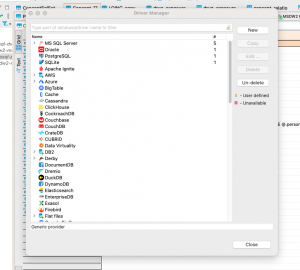
- Select MS SQL Server, New, and configure these driver settings:
- To install a new driver (DBeaver docs), in the Database menu click “Driver Manager”, which opens this modal:
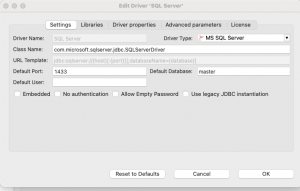
-
-
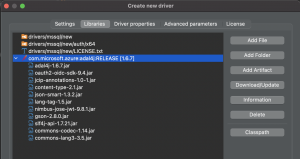
Click on the Libraries tab. Click on Add Artifact→ Under Dependency Declaration add below maven config to get all the dependencies.
<dependency><groupId>com.microsoft.azure</groupId><artifactId>adal4j</artifactId><version>1.6.7</version></dependency> -
Once added, select the dependency from options & click on Download/update.Accept all downloads.The result should look like this:
-
- Create connection to MSDW2
- Peripheral to DBeaver, a user’s AD credentials must be added to the appropriate security group(s). To configure:
- Submit a Sailpoint ticket for a user to be added to (need more information on appropriate MSDW2 group)
- From the Database Navigator, right click on the “master” database and select “Edit Connection”
- From Connection settings, select the Main tab
- Input the following:
- Host: MSDW_PRD.mountsinai.org
- Port: 1433
- Authentication: Kerberos
- Username & Password reflect existing Mount Sinai ID and password
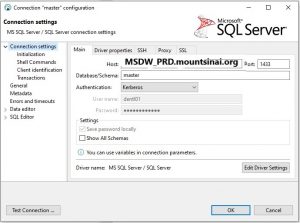
- Select “Test Connection” at the bottom-right of the pop-up to determine success in the connection
- If successful, click “OK”
- Peripheral to DBeaver, a user’s AD credentials must be added to the appropriate security group(s). To configure:
Additional Steps for MacOS & Linux Users
In your /etc directory, create a text file called krb5.conf with the following contents:
[libdefaults] default_realm = MSNYUHEALTH.ORG kdc_timesync = 1 ccache_type = 4 forwardable = true proxiable = true [realms] MSSMCAMPUS.MSSM.EDU = { kdc = ad.mssm.edu admin_server = ad.mssm.edu default_domain = MSSMCAMPUS.MSSM.EDU } MSNYUHEALTH.ORG = { kdc = ad.mountsinai.org admin_server = ad.mountsinai.org default_domain = MSNYUHEALTH.ORG } [domain_realm] mssm.edu = MSSMCAMPUS.MSSM.EDU .mssm.edu = MSSMCAMPUS.MSSM.EDU mountsinai.org = MSNYUHEALTH.ORG .mountsinai.org = MSNYUHEALTH.ORG msnyuhealth.org = MSNYUHEALTH.ORG .msnyuhealth.org = MSNYUHEALTH.ORG |
Open a terminal and enter the following commands, where lastnf99 is your AD username following by either @msnyuhealth.org (for Hospital users) or @mssmcampus.mssm.edu (for School users):
$ kinit lastnf99@MSNYUHEALTH.ORGPassword for lastnf99@MSNYUHEALTH.ORG: <enter your password here>$ klist |
You should then see output similar to this:
Credentials cache: API:93D78EDD-9E69-47F5-86B3-ED1B6F66C29C Principal: yul09@MSNYUHEALTH.ORG Issued Expires PrincipalJul 29 11:54:10 2021 Jul 29 21:53:56 2021 krbtgt/MSNYUHEALTH.ORG@MSNYUHEALTH.ORG |
In DBeaver’s dialog box for your connection to MSDW2, set the following in the “Main” connection parameters tab:
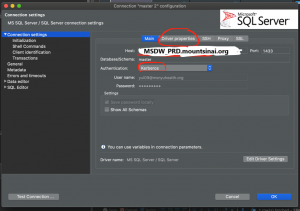
In DBeaver’s dialog box for your connection to MSDW2, click on the “Driver properties” tab and set the following values:
| Parameter | Value | Comment |
| serverName | MSDW_PRD.mountsinai.org | If configuring a connection to the development environment, use msdw2-mssql-dv2.msnyuhealth.org instead |
| databaseName | omop | Most users will have access only to the omop database, but Scientific Computing users could choose a different default |
| integratedSecurity | true | |
| encrypt | true | |
| authenticationScheme | JavaKerberos | This setting is to align with the “Kerberos” authentication setting on the “Main” connection parameters tab |
| trustStoreType | KeychainStore |
This setting is required by MacOS (not sure about Linux) According to Arthur: “To make [this] work, the Mac’s Keychain must store a trusted root certificate for the institution where the SQL Server runs.“ |